
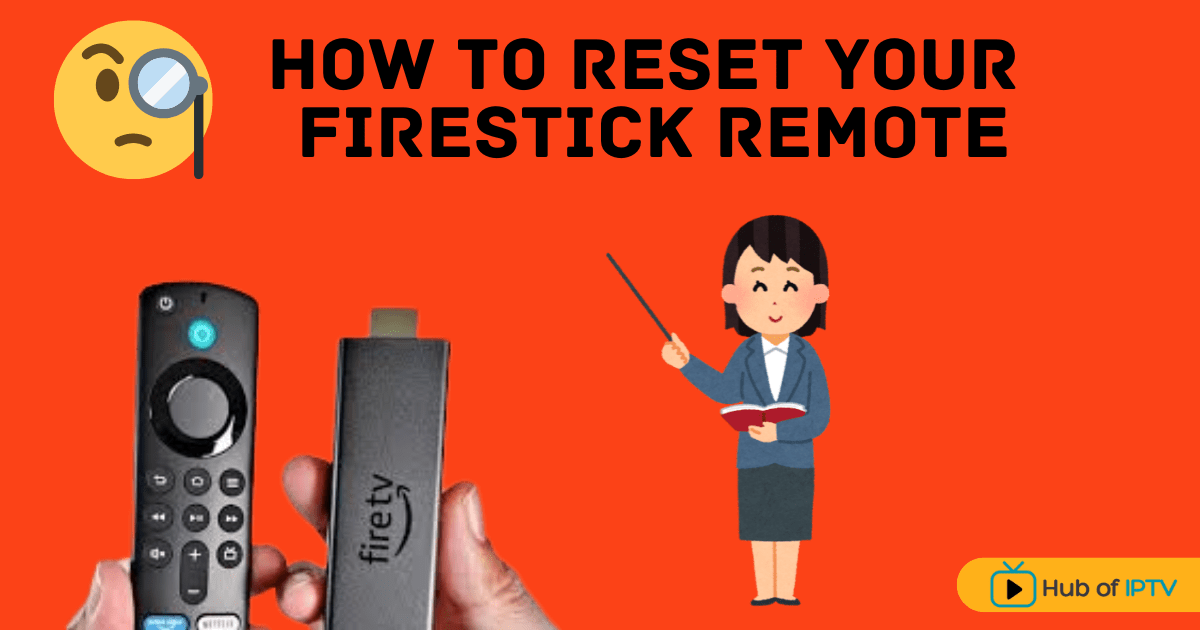
If your Firestick remote isn’t working, don’t panic — it’s a common issue. Whether your buttons aren’t responding or your remote has lost connection, a quick reset can usually fix everything.
In this guide, we’ll walk you through how to reset your Firestick remote step by step, inspired by Your Six Studios’ helpful video tutorial — and we’ll also share a few extra tips from HubOfIPTV, your trusted platform for IPTV and streaming device reviews.
Why You Might Need to Reset Your Firestick Remote
Before jumping into the steps, here are some common reasons your Firestick remote may stop working:
- The remote isn’t pairing with the Firestick
- Dead or low batteries
- Bluetooth connection errors
- Software glitches after updates
- Using the remote with a new Firestick device
A quick reset solves most of these issues in just a few minutes.
Step-by-Step Guide to Reset Your Firestick Remote
Follow these simple steps carefully to reset your Firestick remote:
Step 1: Unplug Your Firestick Device
First, unplug your Firestick from the wall outlet or TV USB port. Leave it unplugged while you reset the remote.
Step 2: Hold Three Buttons Together
Now, on your Firestick remote, press and hold these three buttons at the same time:
- Back button
- Menu button (three horizontal lines)
- Left navigation button
Keep them pressed for about 12 seconds.
Count slowly — “1, 2, 3… up to 12.”
Step 3: Remove the Batteries
Once you’ve held the buttons for 12 seconds, release them and remove both batteries from your remote.
Keep them out for a few seconds.
Step 4: Plug Your Firestick Back In
Go back to your TV and plug the Firestick back in. Wait for it to restart fully until you reach the home screen.
Step 5: Reinsert the Batteries
Now, put the batteries back into your remote and close the battery cover properly.
Step 6: Hold the Home Button to Pair
Once your Firestick is on the home screen, press and hold the Home button for about 10 seconds.
You should see an orange blinking light on the remote — that means it’s in pairing mode.
Wait patiently for 2–3 minutes for your Firestick to recognize the remote automatically.
You’ll see a popup saying “Remote connected” once pairing is successful.
⚡ Troubleshooting Tips (If It Still Doesn’t Work)
If your Firestick remote still doesn’t pair:
- Replace old batteries with new Amazon-approved AAA batteries
- Restart the Firestick again
- Move closer to the Firestick device (within 10 feet)
- Use the Fire TV mobile app as a temporary remote
💡 Bonus Tip from HubOfIPTV
At HubOfIPTV, we help thousands of users fix their streaming issues — whether it’s IPTV setup, device connection, or remote troubleshooting.
If you use IPTV apps like IPTV Smarters, Flixora, or Warp IPTV, make sure your Firestick remote and Firestick are running smoothly before streaming to avoid playback interruptions.
👉 Visit HubOfIPTV.com for trusted IPTV reviews, guides, and setup tutorials that make your streaming experience better.
✅ Conclusion
Resetting your Firestick remote is quick, simple, and effective. Just follow these 6 easy steps and your remote should reconnect without any issues.
Whether you’re watching IPTV, Netflix, or Prime Video — keeping your Firestick remote in good shape ensures a smooth, buffer-free experience.